¶ Simulation
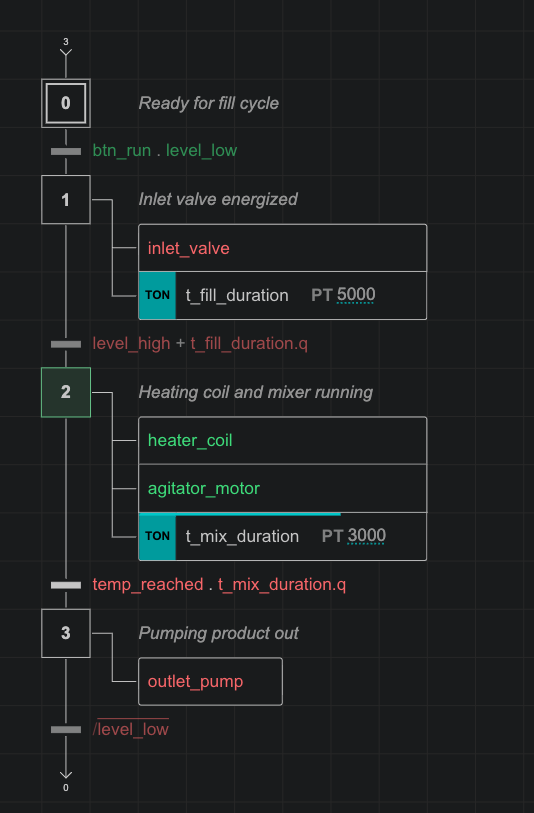
Test your automation logic directly inside AutomationView. The built-in scan-cycle simulator executes your sequences, evaluates transitions, processes timed actions, and highlights active steps in real time.
¶ Simulation Controls
Start and control the simulator from the Sequence Editor toolbar, the Variables sidebar, the Command Palette (Ctrl+Shift+P), or keyboard shortcuts:
| Command | Shortcut | Action |
|---|---|---|
| Start Simulation | F5 | Run the scan-cycle simulation continuously |
| Stop Simulation | Shift+F5 | Stop the simulation and clear runtime state |
| Step Simulation | F10 | Advance exactly one scan cycle (starts paused if stopped) |
| Reset Simulation | Ctrl+Shift+F5 (macOS: Cmd+Shift+F5) | Restore all variables to their initial values and restart from initial steps |
| Run Scenario | Command Palette / Explorer menu | Execute an automated .yaml test scenario |
¶ Scan Cycle Execution
Each scan cycle executes in six deterministic phases following the IEC 61131-3 SFC model:
- Update Plant Model - If a digital twin plant model is configured, compute sensor inputs from actuator outputs.
- Read Inputs - Capture current input and forced variable values.
- Evaluate Transitions - Evaluate transition conditions for all active steps.
- Update Steps - Deactivate preceding steps and activate succeeding steps for fired transitions.
- Process Actions - Execute actions and qualifiers (
N,S,R,P,L,D,SD,DS,SL) on active steps. - Advance Timers & Commit Outputs - Update timers (
TON,TOF,TP,RTO) and counters (CTU,CTD,CTUR,CTDR), then commit all variable writes.
Adjust the scan cycle interval at any time with the automationview.emulation.cycleTimeMs setting (default: 100 ms).
¶ Interacting During Simulation
¶ Set vs. Force Variable Values
You can either Set (write once) or Force (lock across scan cycles) any variable, struct field, or array element:
| Action | Behavior |
|---|---|
| Set Value | Writes a new value for the next scan cycle. Program actions can overwrite it on subsequent cycles. |
| Force Value | Locks the variable to the forced value across all scan cycles until you release the force. |
To modify variables during a run:
- Sequence Editor Canvas:
- Click a boolean variable badge on a transition condition to toggle it between
TRUEandFALSE. - Click a numeric or string variable badge to type a new value and press Enter.
- Hover over any variable, struct, or array in the diagram to inspect live values and individual fields or elements.
- Click a boolean variable badge on a transition condition to toggle it between
- Variables Sidebar:
- Click a variable to set its value, or toggle Force to lock and release it.
- Command Palette:
- Run AutomationView: Set Variable Value and choose the target variable.
¶ Toggle a Step's Active State
Click or right-click any step on the Sequence Editor canvas during simulation to toggle it between active and inactive:
- Inactive -> Active: Activates the step immediately on the next cycle so you can test downstream branches.
- Active -> Inactive: Deactivates the step immediately.
- For dynamic sequences, the toggle applies to the instance currently selected in the top toolbar dropdown.
¶ Digital Twin Plant Models
Connect a declarative YAML or JavaScript plant model to automatically simulate physical hardware feedback (such as cylinder reed switches responding to valve outputs).
¶ 1. Configure the Plant Model Setting
Set automationview.emulation.plantModel in your workspace settings to the relative path of your plant file (for example "plant.yaml" or "plant.mjs").
¶ 2. Declarative YAML Plant (plant.yaml)
Define hardware rules using five built-in behaviors:
| Rule Type | Description |
|---|---|
follow |
Copies a boolean or numeric source expression to an input after an optional delay |
bistable |
Simulates a double-acting actuator (extend_cmd / retract_cmd) with travel times and end-stop sensors (extended, retracted, position) |
ramp |
Moves an analog value toward a target or rate within min/max bounds |
pulse_train |
Generates periodic pulses while an enable variable is TRUE |
counter |
Increments or decrements a value on rising edges of up / down triggers |
rules:
  - type: follow
    source: GripperCloseCmd
    target: PartPresentSensor
    delay: 200ms

  - type: bistable
    extend_cmd: CylExtend
    retract_cmd: CylRetract
    travel_time: 500ms
    retracted: CylAtHome
    extended: CylAtWork
¶ 3. Scripted JavaScript Plant (plant.mjs)
For custom physics or multi-axis math, export a createPlant(api) function from an .mjs module:
export function createPlant(api) {
  return {
    reset() {
      api.set('TankLevel', 0);
    },
    step(dtMs) {
      const filling = Boolean(api.get('FillValve'));
      const level = Number(api.get('TankLevel') ?? 0);
      const next = filling ? Math.min(100, level + dtMs * 0.05) : level;
      api.set('TankLevel', next);
      api.set('TankFull', next >= 100);
    }
  };
}
¶ Automated Test Scenarios
Run repeatable test scripts written in .yaml to verify sequence behavior automatically.
¶ Running a Scenario
- Right-click a
.yamlscenario file in the Explorer and select AutomationView: Run Scenario, or run AutomationView: Run Scenario from the Command Palette. - AutomationView starts the simulator, executes each step in the scenario, and reports pass/fail assertions in the Output panel.
¶ Scenario Actions
| Action | Example | Description |
|---|---|---|
set |
set: { StartBtn: true } |
Write one or more variable values |
pulse |
pulse: { variable: StartBtn, duration: 100ms } |
Set a variable TRUE for a duration, then FALSE |
force |
force: { EmergencyStop: false } |
Force variables to fixed values |
release |
release: [EmergencyStop] |
Release forced variables |
wait |
wait: 500ms |
Advance simulation for a duration or scan cycle count (cycles: 5) |
wait_until |
wait_until: "Clamp.Step2.X == true" |
Advance simulation until a condition becomes TRUE (with timeout: 2s) |
assert |
assert: "PartCounter == 1" |
Verify that a condition holds at the current cycle |
expect_active |
expect_active: [Main.Step10] |
Verify that specific steps are currently active |
name: Clamp cycle verification
cycle_time: 50ms
steps:
  - set:
      StartBtn: true
      PartDetected: true
  - wait_until: "Main.ClampPart.X == true"
    timeout: 1s
  - expect_active:
      - Main.ClampPart
  - assert: "CylExtend == true"
¶ See Also
- Visual Sequence Editor - Visual canvas displaying live simulation feedback
- Simulation Commands - Reference for all simulation and scenario commands
- Simulation Settings - Configure cycle time and plant model path
- Smart Diagnostics - Real-time structural and runtime error checks