¶ Smart Diagnostics
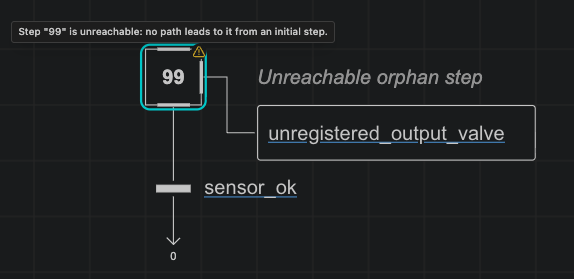
AutomationView validates your sequences and machine configuration in real time. Errors and warnings appear directly on the visual canvas and in the Problems panel (Ctrl+Shift+M) before you run a simulation or export PLC code.
¶ Viewing and Navigating to Issues
- Inline Canvas Badges: Steps, transitions, and actions with issues display an error or warning indicator directly in the Sequence Editor.
- Problems Panel: Press Ctrl+Shift+M to list all project diagnostics.
- Jump to Element: Click any diagnostic in the Problems panel (or click Reveal) to open the file and center the canvas on the affected step, transition, or machine setting.
¶ Sequence Diagnostic Codes (S001–S083)
¶ Structure & Graph (S001–S017)
| Code | Severity | Condition Checked |
|---|---|---|
S001 |
Error | Invalid or missing sequence name |
S002 |
Error | Missing or invalid initial step |
S003 |
Error | Duplicate step names in the same sequence |
S004 |
Warning | Deadlock: step has no outgoing transition |
S005 |
Error | Transition references a step that does not exist |
S006 |
Error | Invalid transition condition syntax |
S007 |
Error | Invalid or empty action target name |
S008 |
Warning | Duplicate conditions on branches of an OR divergence |
S009 |
Error | Divergence and convergence branch counts do not match |
S010 |
Error | Branches cross between separate divergences |
S011 |
Warning | Step transitions directly back to itself (self-loop) |
S012 |
Warning | Step is unreachable from the initial step |
S013 |
Warning | Overlapping conditions in an OR divergence (enabled via automationview.diagnostics.divergenceOverlap) |
S014 |
Error | Invalid jump target |
S015 |
Warning | Parallel AND branch synchronization mismatch |
S016 |
Warning | Empty branch in a divergence |
S017 |
Error | Cycle without an initial step |
¶ Expressions & Actions (S030–S032)
| Code | Severity | Condition Checked |
|---|---|---|
S030 |
Error | Syntax error in an action condition ([cond]) or assignment expression (:= expr) |
S031 |
Error | Missing or invalid instruction operand |
S032 |
Warning | Qualifier requires a duration (D, L, SD, DS, SL) but none is set |
¶ Data Types, Arrays & Structs (S050–S059)
| Code | Severity | Condition Checked |
|---|---|---|
S050 |
Warning | Type mismatch in comparison, assignment, or instruction operand |
S051 |
Error | Array index is out of declared bounds |
S052 |
Error | Array dimension count does not match declaration |
S053 |
Error | Reference to an unknown STRUCT field |
S054 |
Error | Reference to an unknown ENUM value |
S055 |
Error | Indexing a non-array variable |
S056 |
Error | Dot-access on a variable that is not a STRUCT, timer, or counter |
S057 |
Warning | Implicit narrowing numeric conversion |
S058 |
Error | Writing to a read-only input variable (%I) |
S059 |
Warning | Unused local variable |
¶ Sequence Options (S070–S075)
| Code | Severity | Condition Checked |
|---|---|---|
S070 |
Error | Element references an option name that is not declared on the sequence |
S071 |
Error | Duplicate option declaration |
S072 |
Error | Initial step is gated by an option without an active fallback initial step |
S073 |
Warning | Option combination disconnects the sequence graph or creates an unreachable branch |
S074 |
Warning | Transition connects steps with incompatible option conditions |
S075 |
Info | Declared sequence option is not assigned to any element |
¶ Project-Wide Checks (S080–S083)
| Code | Severity | Condition Checked |
|---|---|---|
S080 |
Warning | Multiple sequences write to the same variable using the N (non-stored) qualifier |
S081 |
Error | Cross-sequence reference (Seq.StepName.X) targets an unknown sequence or step |
S082 |
Error | Duplicate sequence class name across project files |
S083 |
Warning | Variable data type cannot be inferred from usage; declare it in main.machine |
¶ Machine Diagnostic Codes (M001–M024)
The Machine Editor validates main.machine across all five tabs:
| Code Range | Area | Conditions Checked |
|---|---|---|
M001–M005 |
Project & Files | Missing project name, invalid .machine syntax, or unresolved .seq file imports |
M006–M011 |
Instances | Unknown sequence class, duplicate instance name, or invalid instance parameter values |
M012–M016 |
Architecture & I/O | Unknown equipment ID, duplicate station name, hardware address conflict, or incompatible channel type |
M017–M021 |
Datatypes & Variables | Duplicate STRUCT/ENUM name, circular struct definition, invalid array bounds (low > high), or invalid initial value |
M022–M024 |
Instance Options | Unknown option name passed to add_instance, non-boolean option value, or option applied to a non-dynamic sequence |
¶ Optional Divergence Overlap Check
To detect non-mutually-exclusive conditions across branches of an OR divergence (S013), enable the setting in your workspace configuration:
| Setting | Type | Default | Description |
|---|---|---|---|
automationview.diagnostics.divergenceOverlap |
boolean |
false |
Warn when two branches of an OR divergence can evaluate to TRUE simultaneously |
¶ See Also
- Visual Sequence Editor - Inspect and fix sequence diagnostics visually
- Machine Editor - Resolve machine, datatype, variable, and instance diagnostics
- Simulation - Step through sequences cycle by cycle to debug runtime behavior
- Step Navigation & References - Find all references to steps and variables across files