¶ Visual Sequence Editor
Open any .seq file to design your automation logic directly on the interactive canvas. Every visual edit automatically updates the underlying sequence file.
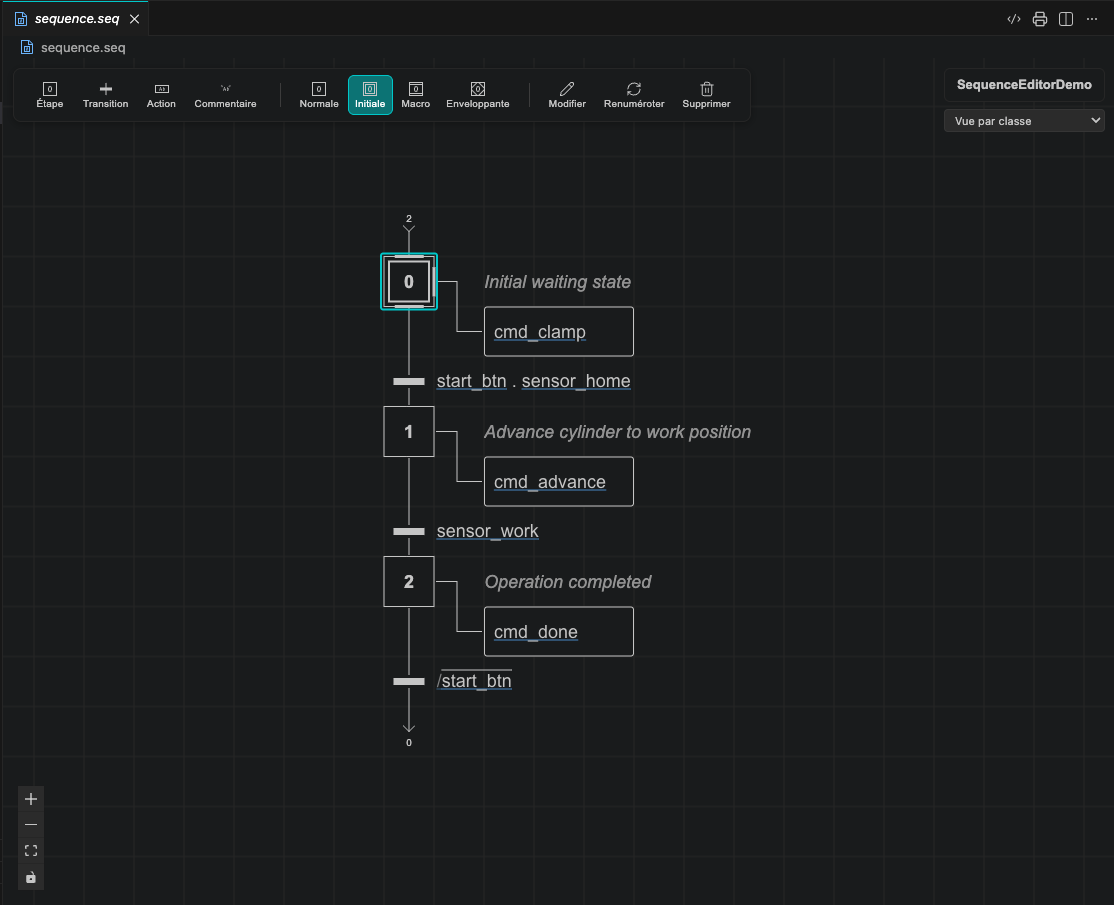
¶ Overview
- Open a
.seqfile to launch the visual editor. - Add steps, transitions, actions, and comments using single-key shortcuts or the top-left toolbar.
- Click the sequence name in the top-right panel to rename the sequence across the project.
- Click Open Text Editor in the title bar at any time to view or edit the Python code directly.
¶ Elements
¶ Steps
Steps represent the states of your sequence. A sequence can have one or more initial steps.
| Type | Shortcut | Description |
|---|---|---|
| Initial Step | I | Starting state (double border) |
| Normal Step | S | Standard execution state |
| Macro Step | M | Contains a sub-sequence (Enter or double-click to open) |
| Enclosing Step | E | Encapsulates child sequences |
¶ Renaming and Renumbering Steps
- Rename a step: Select a step and press F2 (or double-click its name). Cross-file step references (
Sequence.StepName) update automatically. - Renumber steps: Select one or more steps (or right-click a group) and click Renumber (Shift+R) to renumber steps sequentially.
- Encapsulate steps: Select steps and press Ctrl+G (Cmd+G on macOS) or right-click and select Encapsulate to group them into a sub-sequence.
¶ Transitions
Transitions connect steps and define the boolean condition required to advance.
- Select a step and press T to add a transition.
- Type a boolean condition using variables, step states (
s1.x), comparisons (==,!=,<,<=,>,>=), and logic operators (AND,OR,NOT, or.,+,/in Grafcet style). - Use the contextual toolbar buttons (NOT, AND, OR) to insert operators at the cursor.
- Right-click a step with an existing transition and choose Add Divergence OR to create alternative branches, or right-click a transition and choose Add Divergence AND to create parallel branches.
Long-distance jumps and loopbacks render automatically as labeled jump chevrons showing the target step name.
¶ Actions
Actions execute while their parent step is active or as a single-scan pulse when a transition fires.
- Select a step or a transition and press A to add an action:
- Step Action: Runs according to its qualifier (
N,S,R,P,D,L,SD,DS,SL) while the step is active. - Transition Action: Runs once on the scan cycle when the transition condition is satisfied and fires (ideal for setting handshake flags, resetting acknowledgments, or incrementing step counters).
- Step Action: Runs according to its qualifier (
- Click the action name or operand chips to edit them inline, or drag variables from the Variables panel directly onto the node.
- Hold Alt (or right-click the action and select Edit Qualifier & Instruction) to open the floating toolbar and select:
¶ Export Support Indicator
When Export Targets are configured, action nodes display a status dot and tooltip when an instruction is translated or unsupported on a target platform.
¶ Comments
Select a step, transition, or action and press C to attach a documentation comment.
¶ Dynamic Sequences and Options
A dynamic sequence is a reusable template that can be instantiated multiple times in the Machine Editor (for example, cylinder_1, cylinder_2).
¶ Convert a Sequence to Dynamic
- Right-click empty canvas space and select Make file dynamic (or right-click the
.seqfile in the Explorer and select Make Sequence Dynamic). - AutomationView wraps sequence-local variables in
{}placeholders and creates a default instance inmain.machine. - While editing a transition condition or action name in a dynamic sequence, click the Dynamic (
{}) button in the toolbar to toggle{variable}braces around the selected variable.
¶ Configure Sequence Options
Dynamic sequences support boolean Sequence Options to include or exclude steps, transitions, actions, or branches per instance:
- Right-click a step, transition, action, or multi-selection on the canvas.
- Open the Option submenu and click New option....
- Enter a label, name, description, and default state (ON or OFF).
- Use the Option submenu on any element to:
- Assign an existing option.
- Switch between Present when option is ON and Present when option is OFF.
- Click Remove from option to clear the mark.
- Click the options pill under the sequence name panel (top-right) to preview how the diagram looks with each option OFF or ON using the eye icon, change default values, or edit/delete options.
¶ Keyboard Shortcuts
Shortcuts work when the editor canvas is focused and no text input is active.
| Shortcut | Action |
|---|---|
| I | Add initial step |
| S | Add normal step |
| T | Add transition |
| A | Add action |
| M | Add macro step |
| E | Add enclosing step |
| C | Add comment |
| F2 | Rename selected step or edit condition/action |
| Shift+R | Renumber selected steps |
| Ctrl+G / Cmd+G | Encapsulate selected step(s) |
| Ctrl+Shift+G / Cmd+Shift+G | Flatten selected group |
| Ctrl+C / Cmd+C | Copy selected |
| Ctrl+X / Cmd+X | Cut selected |
| Ctrl+V / Cmd+V | Paste |
| Ctrl+D / Cmd+D | Duplicate selected |
| Enter | Navigate into macro step or go to source |
| Escape | Navigate back to parent |
| Delete / Backspace | Delete selected elements |
| Up / Down | Move selected action up / down |
| Shift+Arrow | Extend selection in that direction |
| F12 | Go to sync reference |
| Shift+F12 | Find step references |
| Alt+P | Toggle print mode |
¶ Visual-to-Code Synchronization
- Visual editing: Changes on the canvas update the
.seqfile automatically. - Class declarations pill: When a sequence defines class-level variables or sub-modules, click the Class declarations pill in the bottom-right corner to inspect them.
- Edit protection: If a
.seqfile contains custom Python constructs (such as loops or helper functions), it opens in read-only mode to preserve your code. Click Edit anyway in the top banner to convert it to a standard visual sequence. - Diff highlighting: Opening a file from Git or Timeline history highlights added, removed, and modified elements on the canvas.
¶ Live Simulation Feedback
During simulation, the canvas displays live execution state:
- Active steps are highlighted.
- Enabled transitions and true boolean actions turn green.
- Timed actions display a live progress bar.
- Instance selector: For dynamic sequences, choose which instance to inspect from the dropdown in the top-right panel.
- Interactive forcing: Click any step to toggle its active state, or click transition variables and operand chips to modify values live.
¶ See Also
- Machine Editor - Configure instances, options, hardware, datatypes, and variables
- Smart Completion - Context-aware suggestions while editing
- Simulation - Run and test your diagrams
- Editor Commands - Full list of editor commands
- Editor Settings - Customize editor appearance and behavior