¶ Templates
Templates are saved units of work - a single Sequence, a full project folder, or a multi-file bundle - that you stamp into a project in one click.
¶ What Is a Template
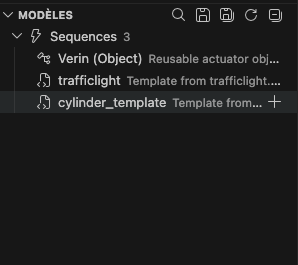
Every template pairs source files with a JSON descriptor. Three types are supported:
| Kind | Files on disk | Typical use |
|---|---|---|
| Sequence template | my-pattern.seq + my-pattern.seq.json |
A reusable Sequence pattern (debounce, retry, alarm latch) |
| Machine template | my-config.machine + my-config.machine.json |
A starter machine configuration |
| Project template | my-project/ folder + my-project.json |
A complete starter project |
The metadata file declares the template's name, description, category, and tags. It is also what makes the template visible to the Templates view - files without a sidecar are ignored.
¶ Where Templates Live
The Templates view sits in the Explorer sidebar and has two sections:
- Global templates - shipped with AutomationView. Read-only.
- User templates - your own templates, plus anything pulled from folders you have added to the library.
User templates are scanned from .automationview/templates/ inside the current workspace and from every folder listed in automationview.templates.folders (machine scope).
¶ Applying a Template
- Open the Templates view in the Explorer sidebar.
- Find the template, optionally filtering with the search box.
- Click the Apply icon on the row, or right-click and choose Apply Template.
Files are copied into the project root. The command is also available as AutomationView: Apply Template in the Command Palette.
Apply will not overwrite existing files with the same name. Rename or move conflicting files first.
¶ Saving a Template
¶ Save the Current File
With a .seq or .machine file open, either click Save File as Template in the Templates view title bar, or run AutomationView: Save File as Template from the Command Palette. Fill in the name, description, and category. The file plus its generated <name>.<ext>.json sidecar are written to your active user-templates folder.
¶ Save the Full Project
Click Save Project as Template in the Templates view, or run AutomationView: Save Project as Template. Every file under the workspace root is packaged into a folder template with a matching <name>.json sidecar.
¶ Editing Templates
Right-click a user template in the Templates view to get:
| Action | Command | Result |
|---|---|---|
| Edit the template body | AutomationView: Edit Template | Opens the source file |
| Edit the metadata | AutomationView: Edit Metadata | Opens the JSON sidecar |
| Open the containing folder | AutomationView: Open Templates Folder | Reveals the template on disk |
¶ Searching Templates
The search box at the top of the Templates view filters by name, description, and tags. Clear Search (or AutomationView: Clear Search) resets it. For larger libraries, set descriptive tags in the metadata sidecar - they are matched by the search box.
¶ Managing Template Folders
User templates live in the workspace by default. Add extra folders to share templates across projects or with teammates.
Run AutomationView: Add Template Folder and pick a local folder, mounted network share, or synced cloud drive. Use AutomationView: Manage Template Folders to enable, disable, or reorder folders, and AutomationView: Remove Template Folder to drop one. Paths are stored in automationview.templates.folders (machine scope).
¶ Settings Reference
| Setting | Type | Default | Notes |
|---|---|---|---|
automationview.templates.folders |
string[] | [] |
Absolute paths scanned for user templates |
¶ Sharing Templates with a Team
Put a shared templates folder on a network share or synced drive (OneDrive, Dropbox, SharePoint, NAS) and have each engineer register it via Add Template Folder. Edits land for everyone after the next refresh.
A workable layout:
\\server\automationview\templates\
  starter-projects\
    safety-cell-v2\
    safety-cell-v2.json
  patterns\
    alarm-latch.seq
    alarm-latch.seq.json
In this structure, each template folder or file is accompanied by its matching JSON metadata sidecar.
Engineers without write access to the share see the templates as read-only, which keeps the house style intact.
¶ Restoring Default Templates
Click Restore Default Templates in the view title bar (or run AutomationView: Restore Default Templates) to re-copy the templates bundled inside AutomationView back into your global templates folder. Despite the cloud icon, nothing is downloaded - this is a local reset.
Restoring defaults overwrites any edits you made to the built-in templates. Your own user templates are not touched.
¶ Refresh and Troubleshooting
| Symptom | Fix |
|---|---|
| New template does not appear | Run AutomationView: Refresh Templates |
| Folder shows as missing | Path was renamed or unmounted - remove it via Manage Template Folders |
| Metadata not displayed | Open the sidecar with Edit Metadata and check the JSON parses |
| Apply fails with a conflict | A file with the same name exists - rename your file first |