¶ Translation and Code Export
AutomationView translates .seq files into native PLC and robot source code and exports complete projects to deployable vendor formats.
¶ Supported Platforms
Install official vendor extensions from the Marketplace to enable translation and project export targets:
| Extension | Target Platform | Translation Source Format | Project Export Format |
|---|---|---|---|
| AutomationView - CODESYS | CODESYS V3 | Structured Text (.codesys-st) |
PLCopen XML (.xml) |
| AutomationView - Siemens | TIA Portal (S7-1200, S7-1500) | SCL (.siemens-scl) |
Openness XML (.xml) & .scl |
| AutomationView - Rockwell | Studio 5000 (ControlLogix, CompactLogix) | Structured Text (.rockwell-st), Ladder (.rockwell-ladder) |
Rockwell .L5X |
| AutomationView - Fanuc | Fanuc Robot Controllers | TP Language (.fanuc-tp) |
.ls / .tp |
See the PLC Target Matrix for full platform capabilities.
¶ Multi-Target Configuration & Support Indicators
Configure your project's active export targets in the Machine Editor:
- Open
main.machineand select the Project tab. - In Export Configuration, select one or more Export Targets.
- Open any
.seqfile in the Sequence Editor to see colored compatibility dots on actions and in the instruction picker:- Green: Fully supported by all configured export targets.
- Amber: Partially supported or exported as a structured placeholder comment on at least one target.
- Red: Unsupported on a configured target.
¶ Translating a Single Sequence
- Open a
.seqfile in the Sequence Editor. - Click the Translate icon in the editor title bar, or run AutomationView: Translate to Target Language from the Command Palette (Ctrl+Shift+P).
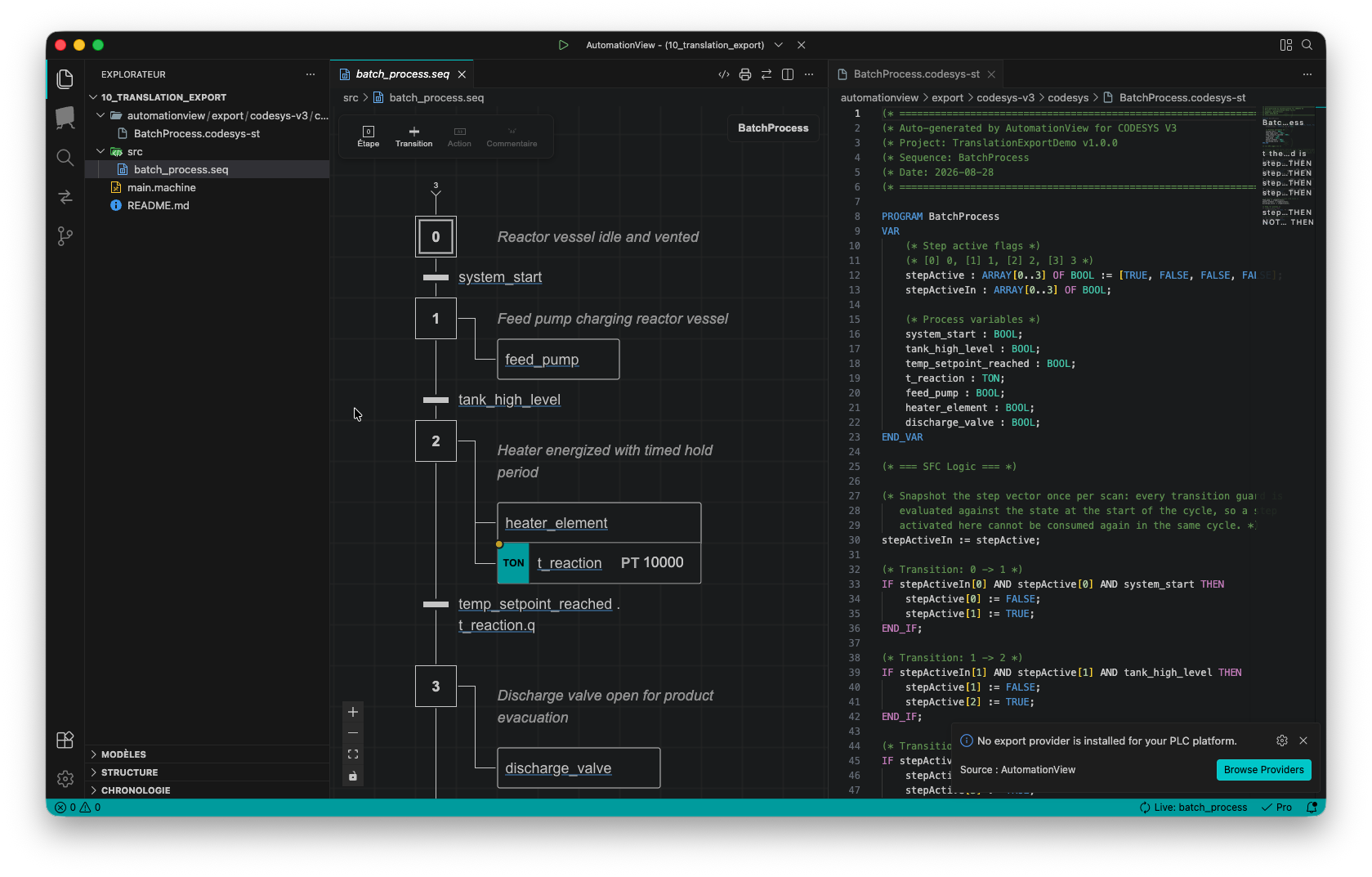
- Select the target format to open a side-by-side preview of the generated PLC code.
- To keep the preview synchronized as you edit the diagram, enable Live Translation. Run AutomationView: Stop Live Translation to close the live session.
¶ Exporting the Project
Run project-wide exports from the Machine Explorer title bar or the Command Palette:
- AutomationView: Export Project: Exports all sequences, instances, custom datatypes (
STRUCTandENUM), global/local variables, and hardware channel mappings to all configured targets. - AutomationView: Export All Sequences: Translates every sequence in the project into individual vendor source files.
- Comment Language Selection: When exporting, select the generated comment language (
en,fr,de,es,pt) or configure the default viaautomationview.export.commentLanguage.
¶ Output Directory Structure
Exported files are written to automationview/export/<target>/ inside your project folder:
project-root/
  automationview/
    main.machine
    sequences/
      fill_station.seq
      empty_station.seq
    export/
      codesys/
        project.xml
      siemens/
        fill_station.scl
        empty_station.scl
¶ Importing Sequences
Import existing PLC code into AutomationView sequences:
- Run AutomationView: Import Sequences from the Machine Explorer title bar or the Command Palette.
- Select the source file (PLCopen
.xml, Rockwell.L5X, or Structured Text.st/.scl). - AutomationView converts the logic into
.seqfiles and registers them inmain.machine.
¶ Auto-Export Settings
| Setting | Default | Description |
|---|---|---|
automationview.export.includeComments |
true |
Include step, transition, and action comments in generated PLC code |
automationview.export.commentLanguage |
en |
Language for generated structural comments (en, fr, de, es, pt) |
automationview.export.autoExport |
false |
Automatically export the project when any .seq file changes |
automationview.export.autoExportDebounceMs |
2000 |
Delay in milliseconds before auto-export runs |
automationview.export.autoExportOnSave |
false |
Export modified sequences automatically on file save |